Purchasing printable artwork is an exciting way to decorate your home without waiting for a physical package to arrive. Once your order is complete, however, you may receive a ZIP folder instead of an individual image. That extra step can feel confusing when you have never worked with compressed files before.
Learning how to download and unzip digital wall art files makes the entire process easier. After extracting the folder, you can select the correct size, send the artwork to a printer, and save an organized backup for future use.
This guide explains the process on Windows computers, Macs, iPhones, iPads, and Android devices. You will also learn how to recognize common file formats and solve several download problems.
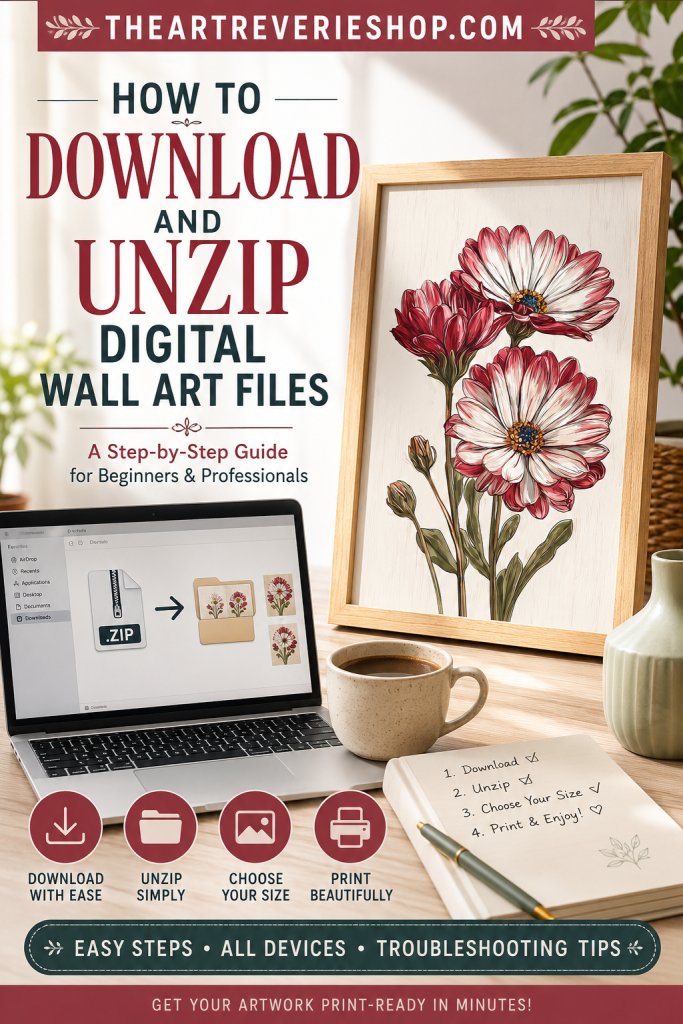
What Is a ZIP File?
A ZIP file is a compressed folder containing one or more digital files. Compression makes a large collection easier to store, download, and deliver.
Digital wall art purchases often include several image sizes or aspect ratios. Instead of delivering each image separately, the seller may combine them inside one ZIP folder.
Your download might contain:
- High-resolution JPEG files
- Printing instructions
- Multiple aspect ratios
- A size guide
- Personal-use licensing information
- PDF documents with additional download links
The ZIP folder does not reduce the quality of the original artwork. It simply packages the included files together. Before printing, you must extract, or unzip, the folder so your device can access the individual images.
Download the Original File First
Begin by opening the purchase confirmation page or download email provided by the marketplace. Select the download button and allow the complete file to save before closing the browser.
Avoid taking screenshots of the artwork or saving a preview image from the product listing. Preview images are commonly reduced in size and may include compression or watermarks. Printing one of those versions could produce a blurry result.
Most computers place downloaded files in a folder called Downloads. Mobile devices may save them in a Files app, browser download folder, cloud storage account, or another location selected during the download.
When several files appear, look for a filename ending in .zip. That extension identifies the compressed folder that needs to be opened.
How to Unzip Digital Wall Art Files on Windows
Windows includes a built-in extraction tool, so additional software is usually unnecessary.
Open File Explorer and select the Downloads folder. Locate the ZIP folder, right-click it, and choose Extract All. Windows will suggest a location for the extracted files.
Select Extract to create a regular folder containing the artwork. Open that new folder and review the included files.
Do not print directly from the compressed ZIP folder. Although Windows may let you preview its contents, some printing programs cannot read compressed files correctly. Extracting everything first creates a more reliable workflow.
Consider moving the finished folder to Documents, Pictures, or a dedicated digital art folder rather than leaving it in Downloads.
How to Unzip Files on a Mac
Mac computers also include a built-in archive utility.
Open Finder and choose Downloads from the sidebar. Locate the ZIP folder and double-click it. Your Mac will automatically create an extracted folder in the same location.
Open the new folder to find the artwork files. You can then preview each image, rename the folder, or move it to a permanent storage location.
Should the folder fail to open, confirm that the download finished. An interrupted connection can produce an incomplete ZIP file that the computer cannot extract.
How to Open ZIP Files on an iPhone or iPad
Apple’s Files app can extract ZIP files without requiring a separate application.
After downloading the purchase, open the Files app. Check the Downloads folder under iCloud Drive or On My iPhone. Tap the ZIP folder once, and the device should automatically create a regular folder beside it.
Select the newly created folder to view the artwork.
Large image collections can use considerable storage space. Keeping the extracted files in iCloud Drive may make them easier to access from another Apple device or computer.
Printing directly from a phone is possible, but checking the filename, size, and crop is often easier on a larger screen.
How to Unzip Files on an Android Device
The exact steps can vary by phone manufacturer, but many Android devices include the Files by Google app or another file manager.
Open the file manager and navigate to Downloads. Tap the ZIP folder, choose Extract, and select a location for the new folder. Once extraction is complete, open the folder and review the available artwork.
Some older Android devices may request an archive application. Before installing anything, check whether your existing Files app includes an extraction option.
Choose the Correct Wall Art File
Printable artwork may be supplied in several proportions because one image shape cannot fit every frame size without cropping.
Filenames often include helpful labels such as:
- 2×3 ratio
- 3×4 ratio
- 4×5 ratio
- A-series
- 11×14
- US Letter
Match the file ratio to the dimensions you plan to print. For example, a 2:3 file is generally suitable for dimensions such as 8 x 12, 12 x 18, or 16 x 24 inches.
Please read the Printable Wall Art Size Guide for Choosing the Perfect Print before placing your order with a printer. It explains how frame dimensions, aspect ratios, resolution, and room scale work together.
Never stretch an image to force it into a different shape. Stretching changes the design’s proportions and can make objects or lettering appear distorted.
Organize Your Digital Artwork
Good organization prevents accidental deletion and makes previously purchased artwork easier to find.
Create one main folder named Digital Wall Art, then add subfolders based on room, decorating style, artist, or purchase date. Keep the original ZIP folder until you confirm that every extracted image opens correctly.
Renaming a folder can also help. A descriptive name such as “Retro Kitchen Prints” is easier to recognize than a long collection of numbers.
Save another copy to cloud storage or an external drive. Digital purchases can sometimes be downloaded again, but maintaining your own backup offers greater peace of mind.
Prepare the File for Printing
Once you have selected the correct image, check its orientation and dimensions before uploading it to a printing service. The artwork should remain at its original resolution whenever possible.
Please check out How to Resize Printable Wall Art Without Losing Quality when your desired dimensions are not listed. That guide explains safe resizing, pixel dimensions, aspect ratios, cropping, borders, and print-resolution checks.
For home printing, your choice of paper will strongly affect color, sharpness, texture, and glare. Please read The Best Paper for Printing Digital Wall Art at Home before purchasing supplies.
Using premium printing materials helps your digital wall art look its best. High-quality matte paper, glossy paper, and archival storage sleeves can improve both appearance and longevity. Before ordering supplies, make sure your printer supports the selected paper type and paper weight.
This post contains affiliate links, which may support the site at no extra cost to you.
Common Download and Unzipping Problems
An error message does not necessarily mean that the artwork is damaged.
When a ZIP folder will not open, delete the incomplete download and try again using a stable internet connection. Switching from a phone to a computer may also help with larger collections.
Files that appear missing may be stored inside a newly created extracted folder. Sort the Downloads folder by the most recent date to locate it.
If an image opens but appears small on screen, check its actual pixel dimensions rather than judging the thumbnail. File browsers often display reduced previews for faster loading.
Printing problems sometimes occur because the ZIP folder was never extracted. Confirm that you are uploading the JPEG or PDF inside the regular folder, not the compressed folder itself.
Finally, verify that enough storage space is available. A device may begin downloading a large archive but fail to finish when its storage is nearly full.
Keep the Original Files Safe
After completing a successful print, retain the original high-resolution files. Avoid repeatedly editing and resaving the only copy because some formats may lose quality after multiple exports.
Create a separate duplicate whenever you need to crop, resize, or adjust the artwork. The untouched original can then serve as your master file.
With a clear download process and an organized storage system, printable wall art becomes easy to use across different rooms, frames, and future decorating projects. Extract the folder, choose the correct ratio, protect the original file, and print from the highest-quality version provided.
Browse more printable vintage wall art and discover unique retro-inspired designs at THEARTREVERIESHOP.COM, where you’ll find downloadable artwork and timeless style for your home.
Discover more from The Art Reverie Shop
Subscribe to get the latest posts sent to your email.